
Inspect the changes in your session’s repository before accepting an agent’s result. Start by choosing the question you want the diff to answer.
Before you begin
Section titled “Before you begin”Select the intended session and check its project and branch. A diff shows differences between versions; it does not establish that a feature works. Ask for tests or a manual check as well.
1. Choose a comparison
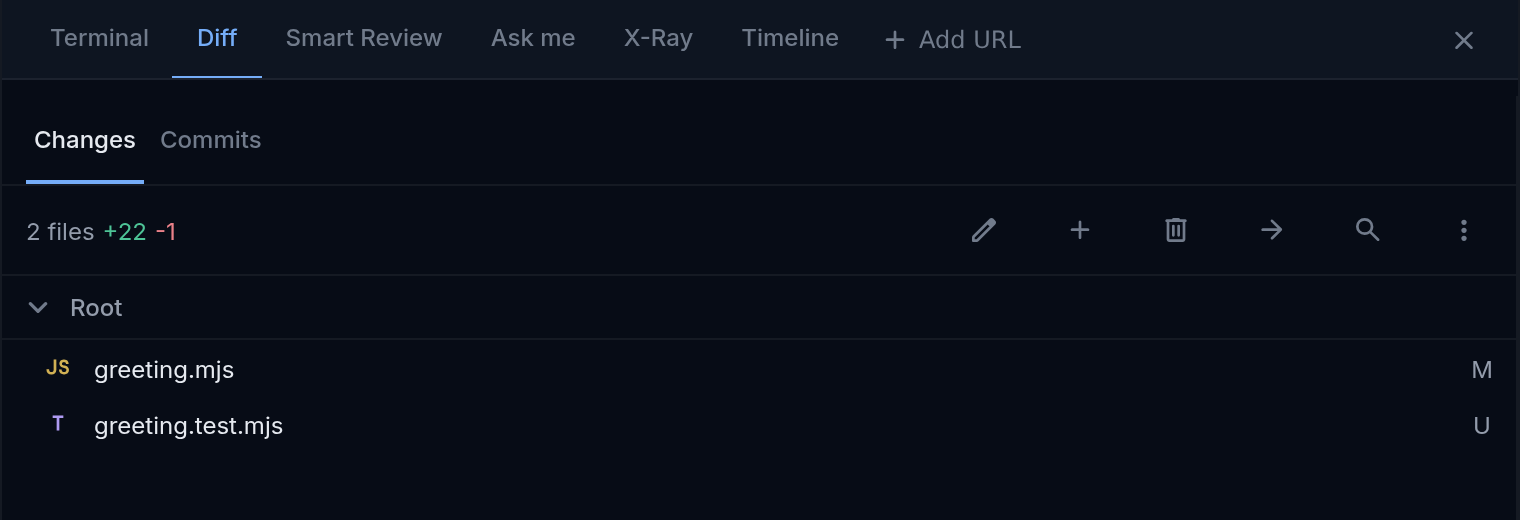
Section titled “1. Choose a comparison”Select the Diff tab at the top of the session. In the Diff sidebar, select Changes, then Diff filters, the ⋮ button next to the search icon. If the Diff sidebar is hidden, select Show Diff sidebar. Under Compare, choose:
| Compare option | Question it answers |
|---|---|
| All changes | What differs across this branch and its current working files? |
| Working changes | What is still outside commits, including new untracked files? |
| Branch changes | What has been recorded in this branch’s commits since its common ancestor with the base? |
Staged, unstaged, and untracked are different kinds of working changes. Staged changes are prepared for a commit; unstaged edits are not. Untracked files have not been added to Git yet.
Understand the base
Section titled “Understand the base”The base is the branch Firehose compares your branch with. Firehose uses a configured base when supplied; otherwise it tries the remote’s default branch, then common main/master branch names. The branch comparison starts at the common ancestor, where the two histories meet.
A ── ● ── B ── C base branch │ └── D ── E your branch + working editsIn this example, Branch changes compares the shared point with E. All changes also includes your working edits. It does not compare E directly with C. If no base can be found, Firehose can compare from an empty repository state, so the result may include every file.
2. Read a changed file
Section titled “2. Read a changed file”Select a file to inspect added and removed lines. Read them alongside the original request. Select Code, beside Diff above the file, for the contents represented by that comparison; deleted files have no new contents to display.
Expected result: you can identify the specific behavior changed, such as choosing guest when the trimmed name is blank.
Images, binary files, and files exceeding display limits may have a different preview or a limitation message. A missing text preview does not mean the file is unchanged.
3. Check commits and working edits separately
Section titled “3. Check commits and working edits separately”Suppose your task branch already contains a committed greeting fix, and you then edit the test file without committing it:
- Branch changes shows the committed fix relative to the common ancestor.
- Working changes shows the test edit still outside a commit.
- All changes gives you the combined view.
Select Commits, beside Changes in the Diff sidebar, to browse branch commits. Select a commit, then a file, to inspect that commit’s changes. Select Back to file list or Back to commits to return.
If a file is missing
Section titled “If a file is missing”Check the selected comparison first. Then clear any search, status, or annotation filter excluding that file. A committed fix will not appear in Working changes once no further edits remain. A new test file may still be untracked.
If the repository changes while you read, click or tap the branch name on the prompt bar to refresh Git status. The file list can show Refreshing… while it updates. If loading fails and Retry appears, select it and check for files or an error before deciding. See diff troubleshooting if the result still differs from what you expect.
Turn the review into a follow-up
Section titled “Turn the review into a follow-up”For the greeting example, ask:
The diff adds a fallback name. Show the checks for an empty string,spaces only, and a nonblank name. Report which checks you ran.For committed branch work with a usable review base, use Smart Review for another assessment. For the standalone practice repository, finish the task when the changes and checks meet your request.