# Take a feature from plan to merge
Take one feature all the way through Firehose: plan it, build it in its own worktree, review it two ways, test it, and hand it off as a pull request. You can start from an idea and shape the plan inside Firehose, or start from a GitHub issue.
This article describes Firehose 1.2.3. It links to the tool guides for detail; read [Find your way around Firehose](/getting-started/find-your-way/) first if the layout is new to you.
## The flow at a glance
1. **Start the work.** Either plan it yourself in a new session, or create a session from a GitHub issue.
2. **Clarify it.** Use **Ask me questions** so the agent asks the questions that change the design before it writes code.
3. **Shape the plan.** Have the agent write the plan to a Markdown file, then improve it with **Refine Plan** until it is right.
4. **Build it.** Tell the agent to implement the plan, and answer its questions and approvals as it works.
5. **Review it with Smart Review.** Get findings from a reviewing agent, choose what to do with each, and send them back with **Act**.
6. **Read it yourself with X-Ray.** Walk the changed files in dependency order and look for untested code.
7. **Test it.** Run a final testing round: a test-focused review, the test suite, and a hands-on check in the browser.
8. **Hand it off.** Commit, open a pull request, and close the session.
Steps 2 to 8 are the same whichever way you start.
## Before you begin
- Firehose is [installed, activated, and connected](/getting-started/connect/), and an agent tool such as Claude Code or Codex is signed in.
- Your project is in a configured project directory and has at least one commit. See [Prepare a project for an agent](/guides/prepare-project/).
- To start from GitHub issues: the [GitHub CLI](https://cli.github.com/) (`gh`) is installed and signed in on the Firehose computer, and the project's `origin` remote is on GitHub.
The examples use a fictional `hello-firehose` project and a feature called "Greet blank names as guest". Replace them with your own project and feature.
## Start from an idea: plan inside Firehose
Use this route when the feature is not written down yet, or when you want to agree on the plan before any code changes.
### 1. Start a session in its own worktree
Select **New session** (the **+** at the top of the **Sessions** sidebar), pick the project, select **Next: Choose a workspace**, and choose **New worktree**. Name it after the feature, such as `greet-blank-names`, and start the session. A worktree keeps the feature's files and branch separate from everything else; see [Choose a workspace](/guides/workspaces/).
Smart Review only runs on a branch other than `main` or `master`, so a new worktree also makes the later review steps available.
### 2. Clarify the feature with Ask me questions
Before asking for a plan, let the agent find the decisions you have not made yet.
1. On the prompt bar above the message box, select **tools**, then **Ask me questions**.
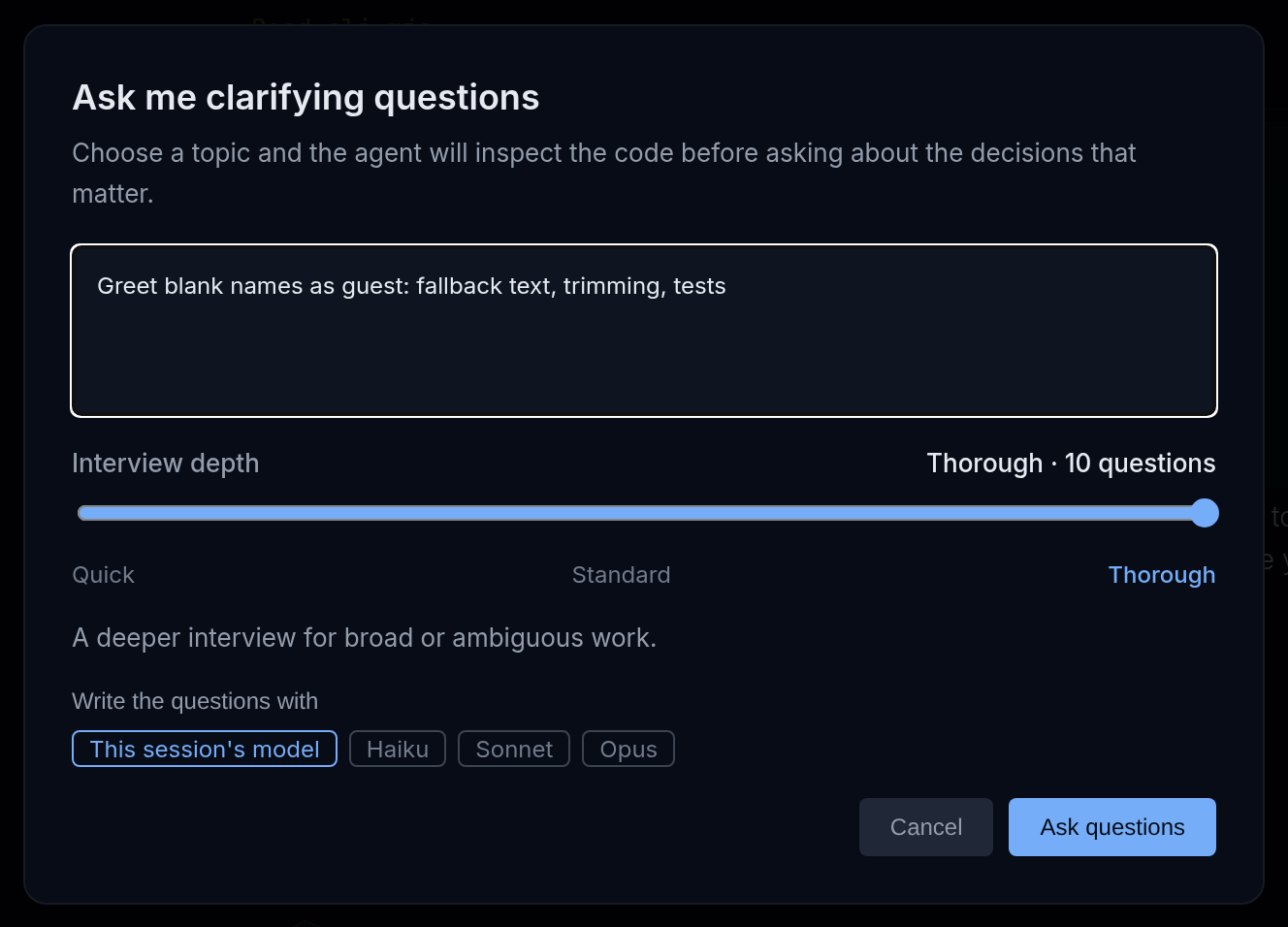
2. In **Ask me clarifying questions**, describe the feature, for example: `Greet blank names as guest: fallback text, trimming, tests`.
3. Choose an **Interview depth**: **Quick** (3 questions), **Standard** (5), or **Thorough** (10). Use **Thorough** for a feature with many open decisions.
4. Select **Ask questions**.
Ask me clarifying questions, with Thorough depth. Sample project hello-firehose.
The agent reads the project first and writes only questions whose answers would change the work. It does not edit files while it prepares them.
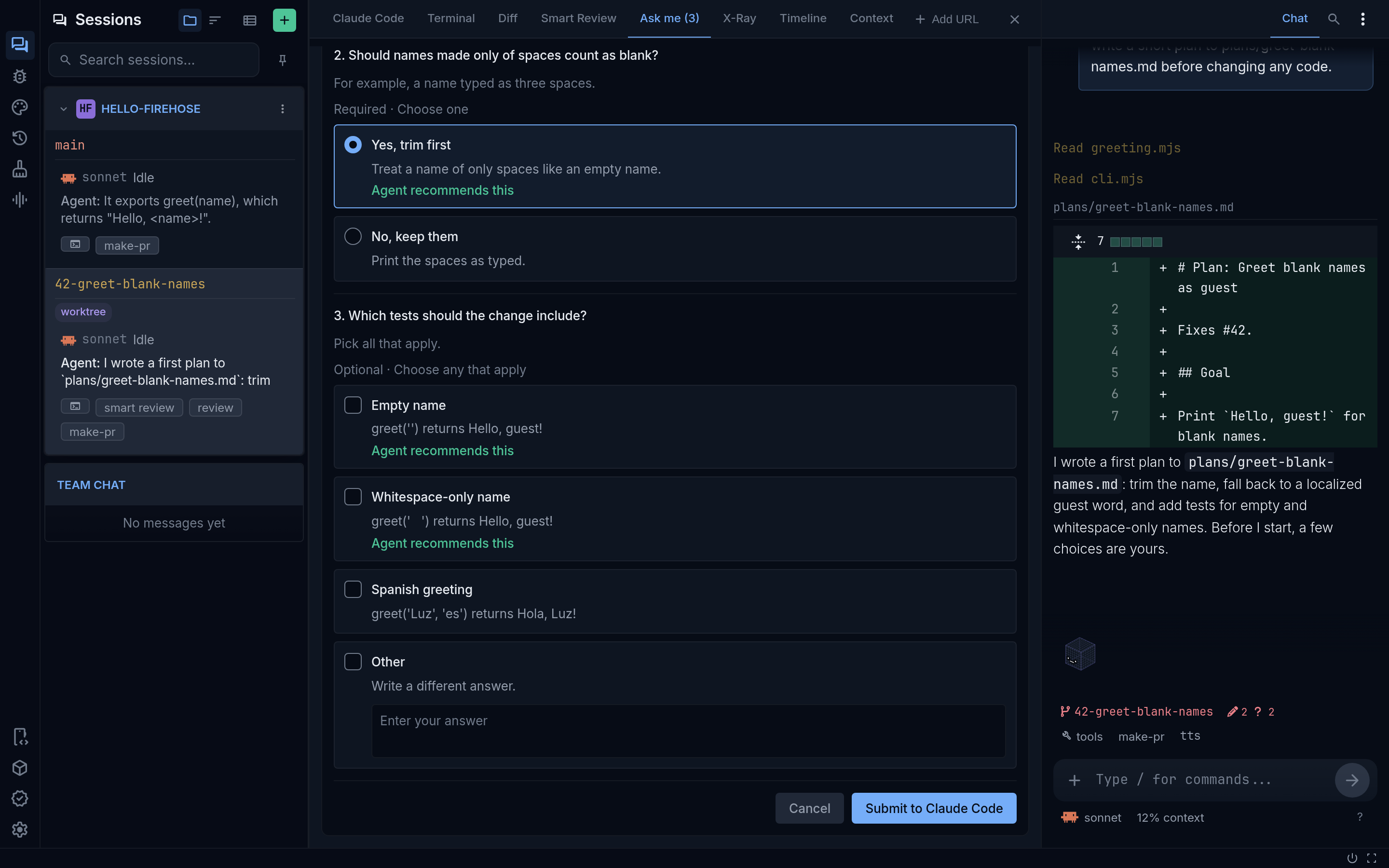
When the questions are ready, the **Ask me** tab at the top of the session shows **Ask me (N)** and the set says **Your turn**. Answer each question. A question marks a recommended option only when the agent has a real reason, and many also have a field for your own words.
A questionnaire in the Ask me tab, ready for Submit to Claude Code. Sample project hello-firehose.
Select **Submit to** and the provider's name, such as **Submit to Claude Code**. Submitting tells the agent to summarize what it understood and **start the work immediately**. To get a plan first rather than code, say so in your answers, for example: "Write a plan to `plans/greet-blank-names.md` and stop. Do not change any code yet." See [Ask clarifying questions](/tools/questions/) for the full tool.
### 3. Have the agent write the plan to a file
If you skipped the questions, ask for the plan directly in the message box:
```text
Write a plan for greeting blank names as guest to plans/greet-blank-names.md.
Cover the goal, the steps, the files you will change, and the tests you will add.
Do not change any code yet.
```
A plan in a file is easy to read, edit, refine, and keep. Open it from the agent's reply or with **Ctrl+P** (Quick Open) and its name.
### 4. Refine the plan until it is right
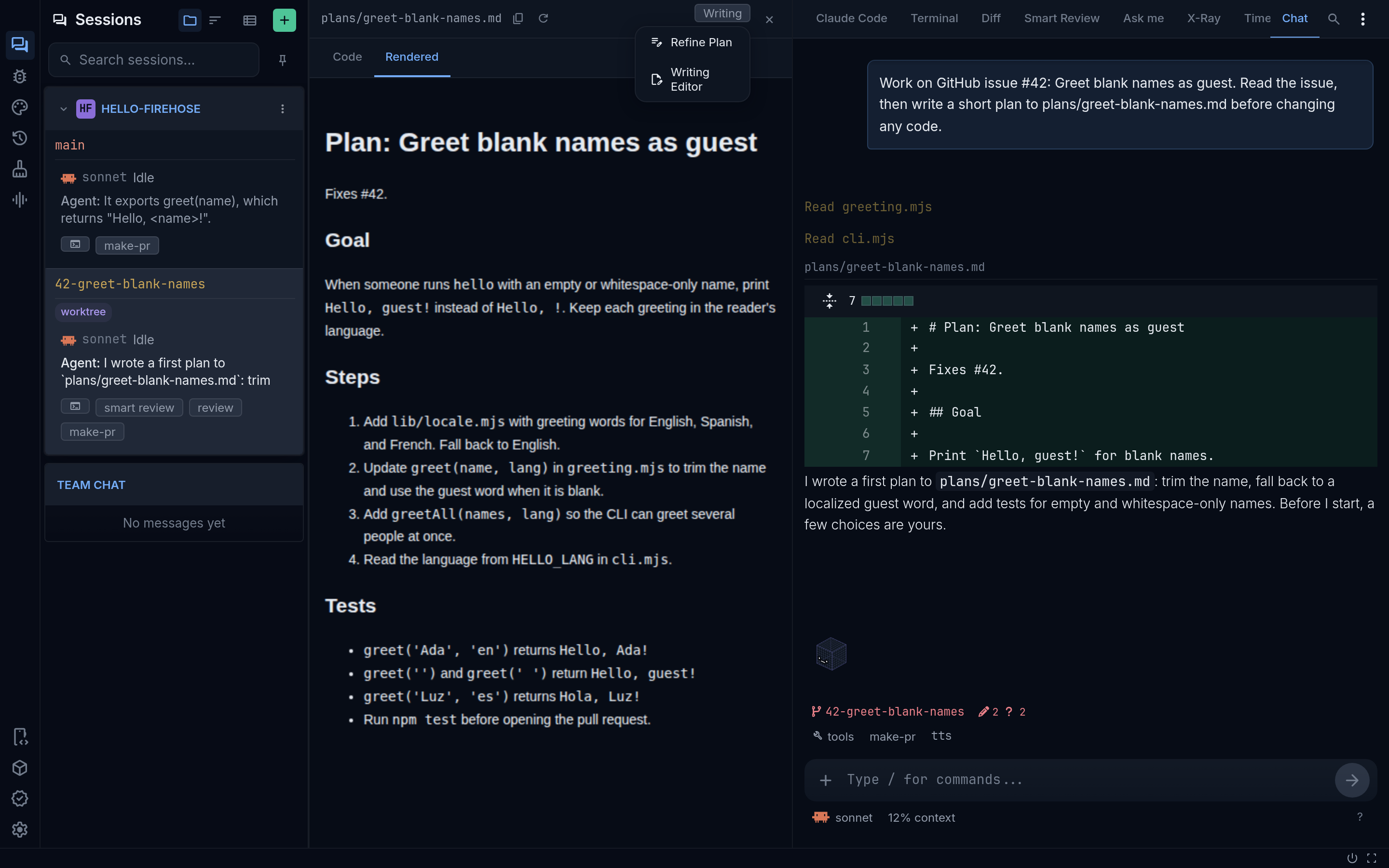
With the plan open in the file viewer, select **Writing** in the viewer's header (on a phone, the writing-tools icon), then **Refine Plan**.
A plan file with the Writing menu open on Refine Plan. Sample project hello-firehose.
Refine Plan sends the plan to the agent with instructions to check it against the actual code: fix stale paths and vague steps, and keep the summary consistent with the details. It does not change any code and does not start the work. The agent reports what it changed, so you can run **Refine Plan** again and each pass builds on the last.
Between passes, edit the file yourself or tell the agent what to change in the message box, for example "Use the existing `formatName` helper instead of adding a new one." **Writing Editor**, in the same menu, helps with the prose itself.
Refine Plan needs a Markdown file and a provider that supports writing tools, such as Claude Code.
#### If the agent proposes a plan in plan mode
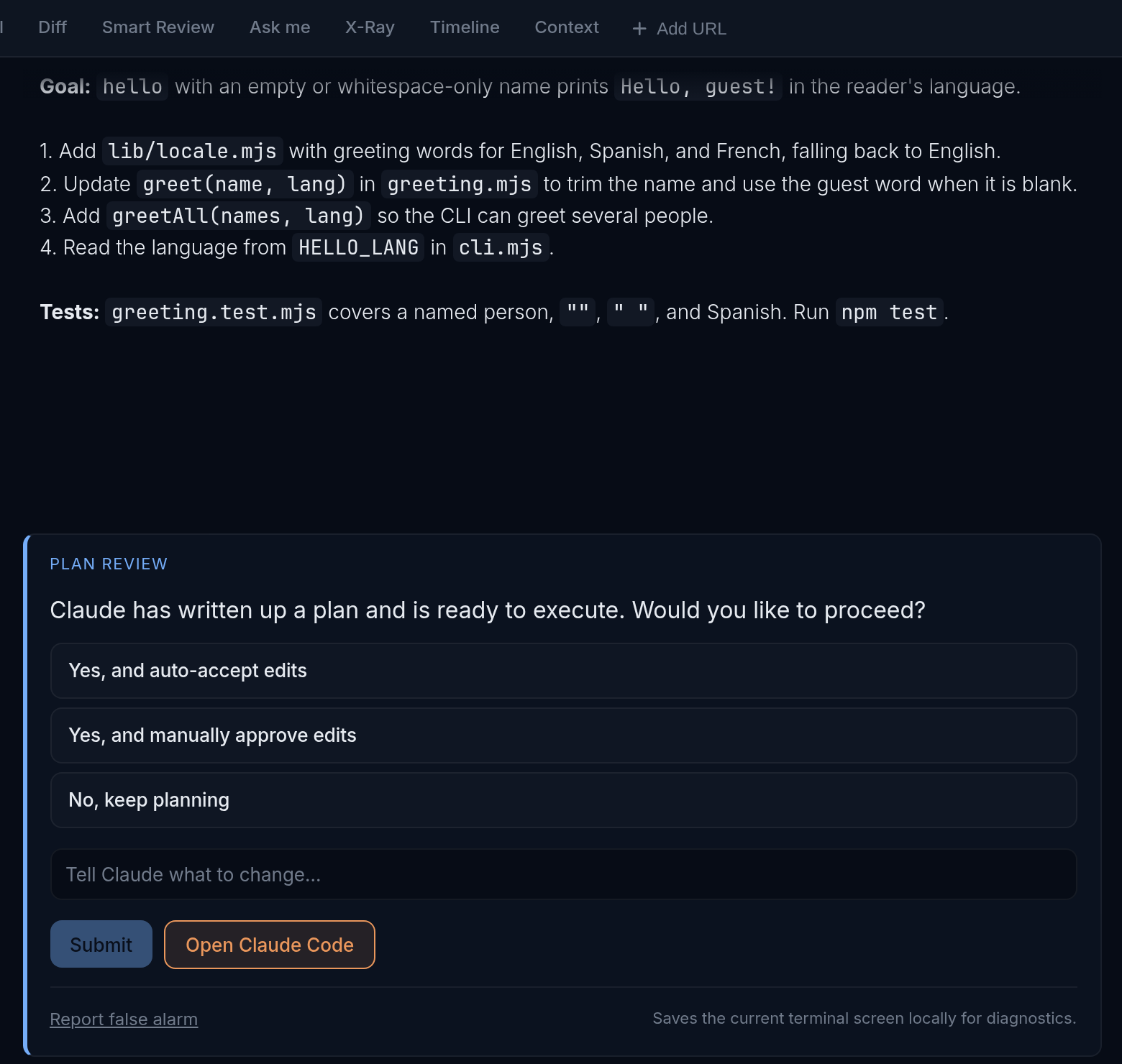
Claude Code can also present a plan in its own plan mode. When it does, a **Plan review** card appears in the conversation, with the plan in the messages above it.
The Plan review card under Claude's plan. The options come from Claude Code and can differ; the plan is a sample.
- Select one of the card's options to approve the plan and let Claude continue.
- To ask for changes instead, type them in **Tell Claude what to change...** and select **Submit**.
- If the card says the plan can only be approved in the terminal, open the terminal it offers and answer there.
Firehose does not have its own switch that puts Claude into plan mode. Antigravity has one: when you start an Antigravity session, its mode can be set to **Plan only**, which prevents edits.
### 5. Build from the plan
When the plan is right, ask for the work:
```text
Implement plans/greet-blank-names.md. Add the tests it lists and run them.
Commit when the tests pass. Do not push.
```
Follow the work in the conversation and answer what it asks:
- Questions and choices appear in the conversation; answer them in the message box. See [Chat and follow-ups](/tools/chat/).
- Approval requests appear as cards above the message box. See [Choose agent permissions](/reference/agent-permissions/).
- To stop the agent, press Escape in the message box, or select the red **Stop (interrupt)** button above it.
For long work, **tools → Auto prompt** can re-send a prompt such as `/keep-going` on a schedule: you set **Interval minutes** (30 by default) and **Runs** (8 by default). It is available for Claude Code and Codex.
## Start from a GitHub issue
Use this route when the feature is already a GitHub issue. Firehose creates the worktree and starts the agent for you.
### 1. Find the issue
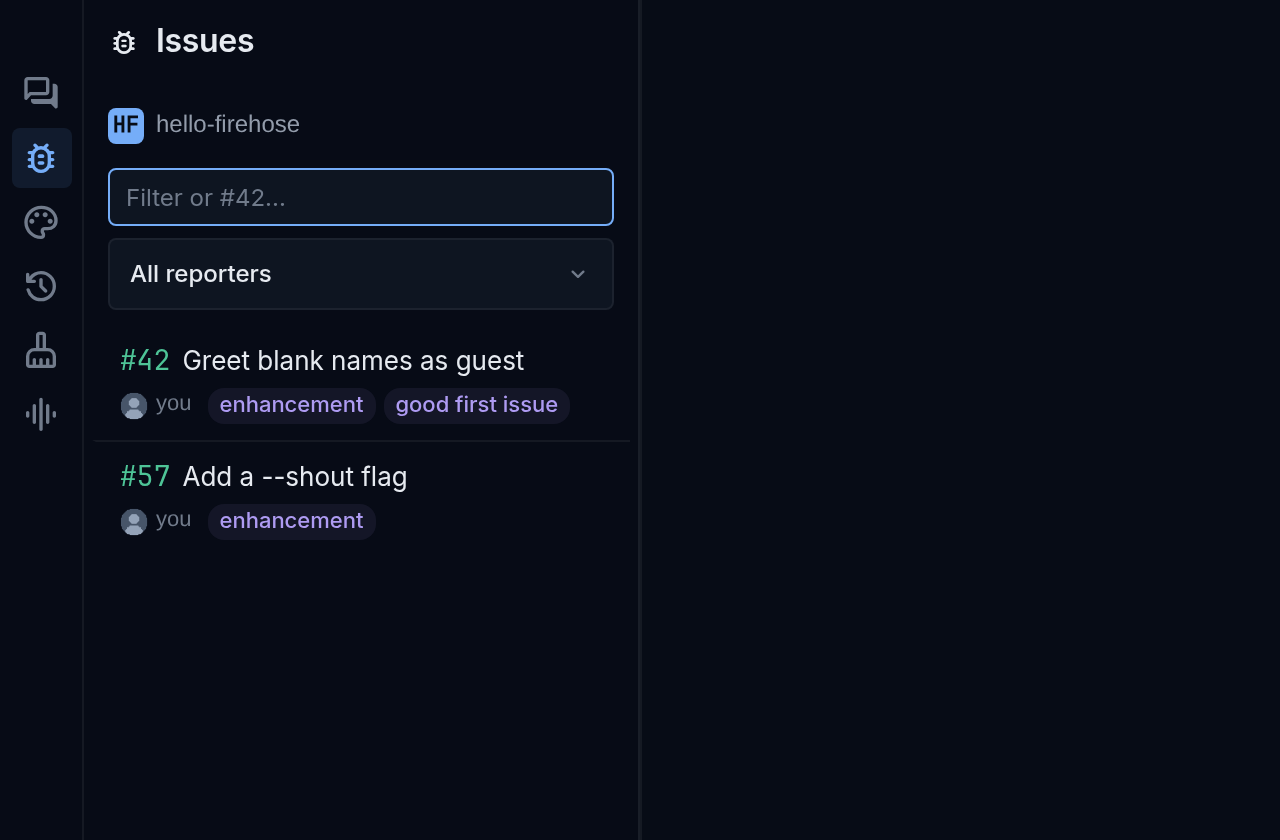
Select the bug icon labeled **GitHub Issues** on the icon rail on the far left. Choose the project, then filter the list by title, number, label, or author, or type `#42` to jump to one issue. Firehose lists open issues. An issue that already has a session shows **Working**.
The GitHub Issues panel, opened from the bug icon on the icon rail. Sample issues.
### 2. Create a session to fix it
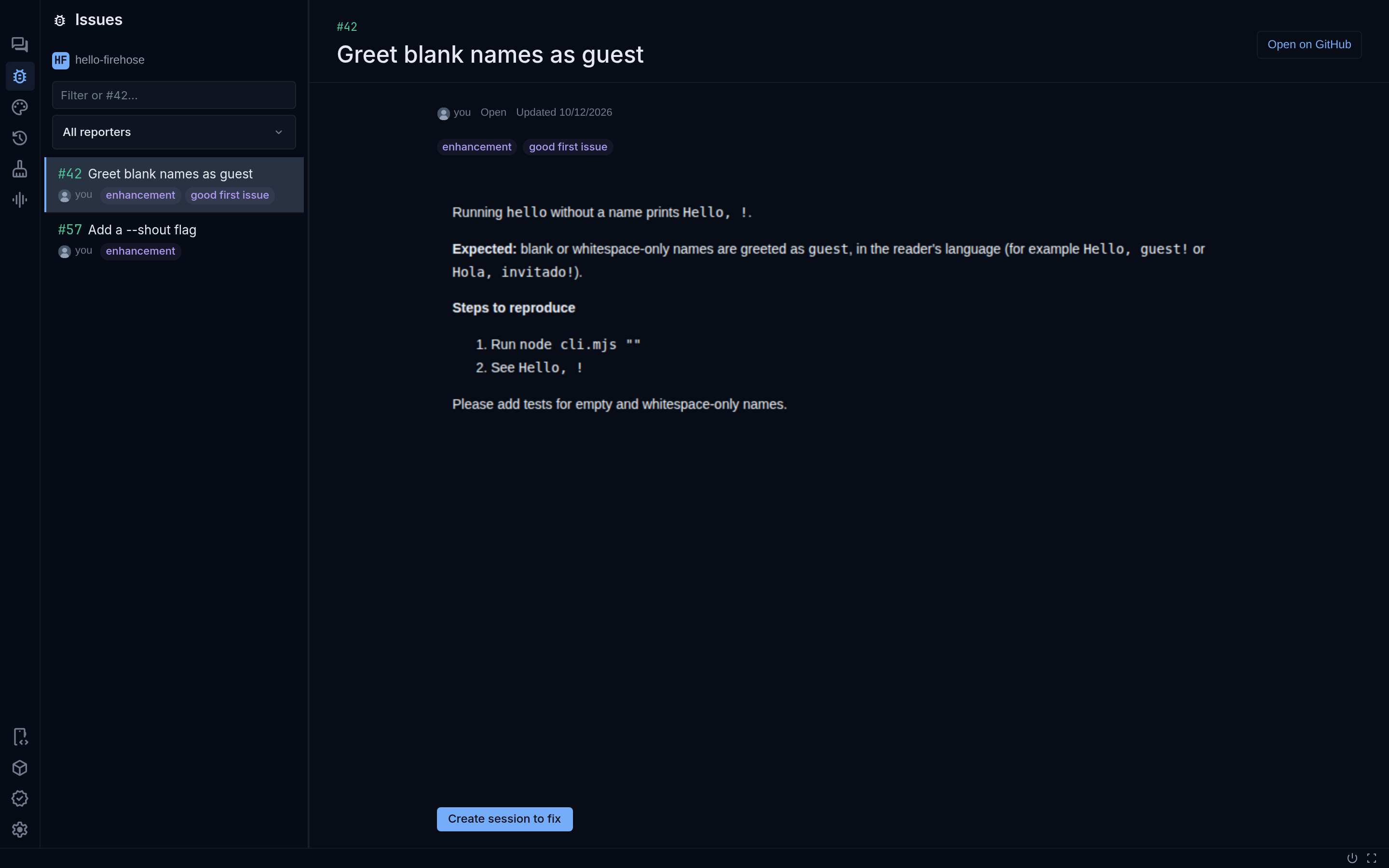
Select the issue to open its details: labels, body, and **Open on GitHub**. Then select **Create session to fix**.
An issue's details, with Create session to fix. Sample issue.
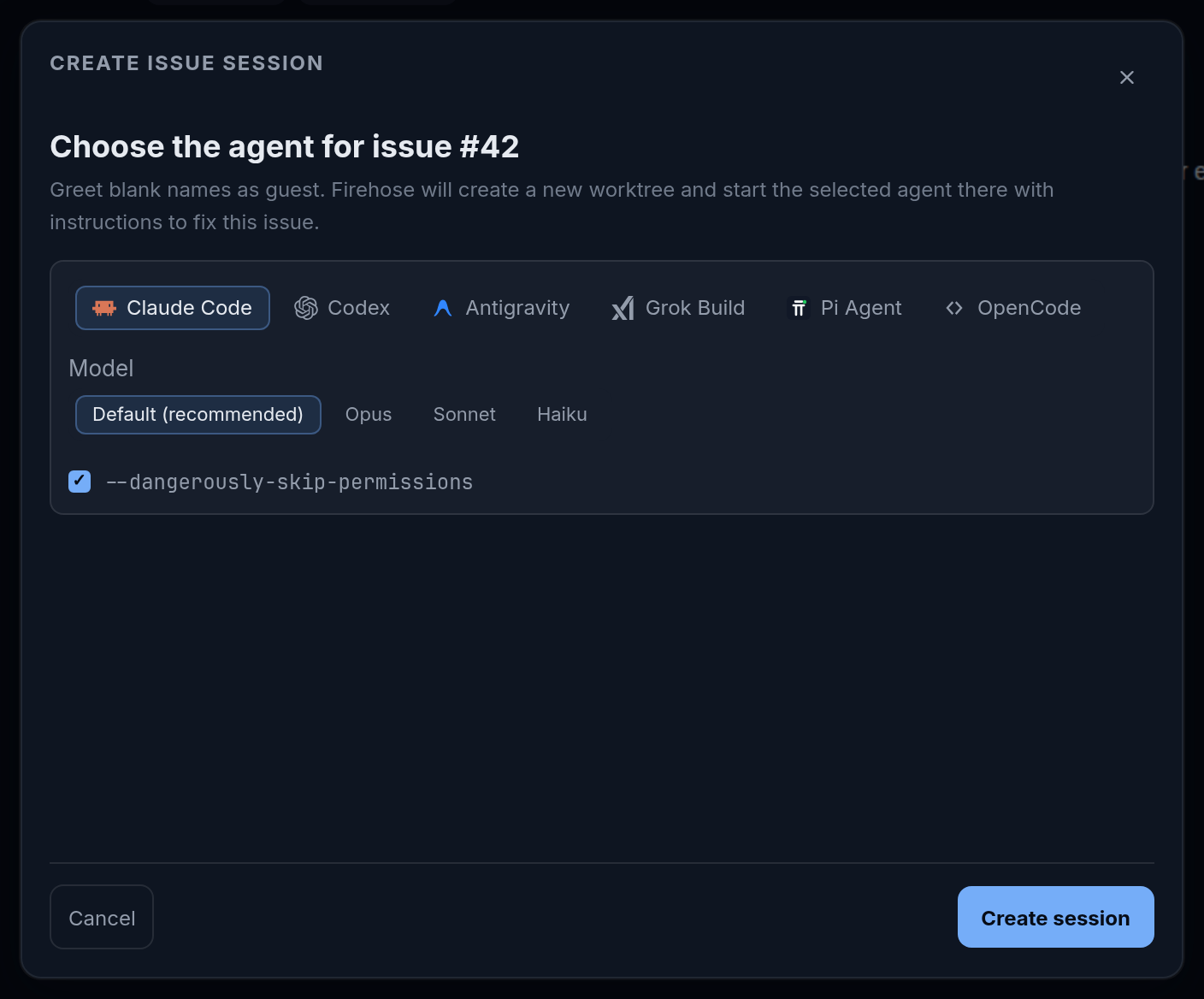
In **Choose the agent for issue #42**, pick the provider, model, and permission settings, then select **Create session**. Firehose creates a new worktree on a branch that starts with the issue number, such as `42-greet-blank-names`, and starts the agent there.
Choosing the agent for an issue. Model choices depend on your provider and account.
### 3. Know what the agent does next
The agent starts at once, and what it is told depends on the provider:
- **Claude Code** writes its own `issue-plan.md` in the worktree and follows it: it treats the issue as a hypothesis, reproduces the problem, makes the change, runs the checks, commits with the issue number, pushes, and opens a pull request that says `Fixes #42`. You do not get to review that plan before work starts.
- **Other providers** investigate, make the change, run the checks, and stop for your review. They do not open a pull request.
If the issue needs design decisions, stop the agent as soon as it starts (Escape in the message box), then continue with [Clarify the feature](#2-clarify-the-feature-with-ask-me-questions) and [the plan steps](#3-have-the-agent-write-the-plan-to-a-file) in the same session. The worktree and branch are already set up.
If the session is created but the first message is not delivered, the issue shows a message such as **Session created, but kickoff delivery failed.** Select **View session** to check it, or **Retry kickoff**.
## Review it with Smart Review
Smart Review asks a reviewing agent to read the whole change and report findings you can act on. It runs on the session's branch, so it is available on any branch other than `main` or `master`.
### 1. Start a review
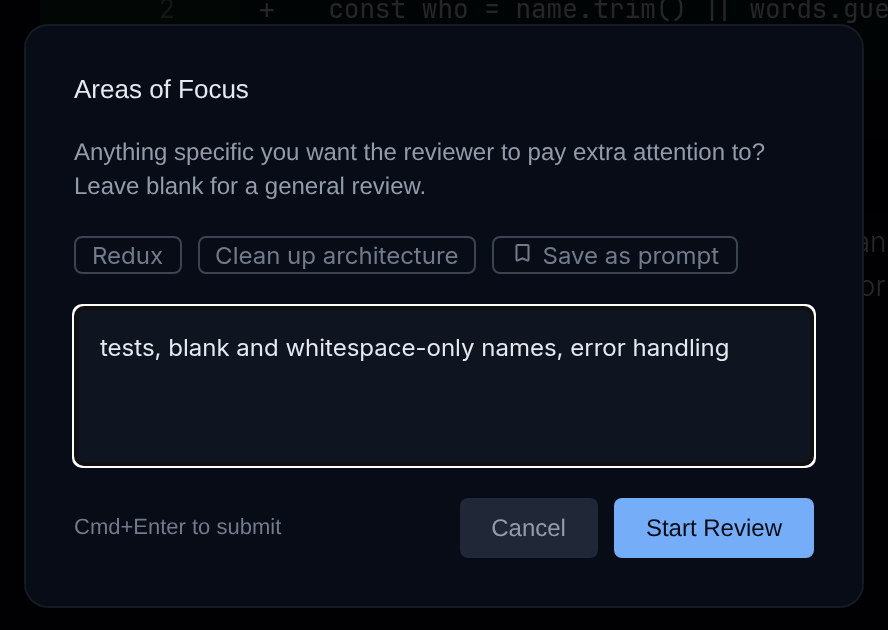
1. On the prompt bar, select **tools**, then **Smart review**, then **run review**.
2. In **Areas of Focus**, describe what to look at hardest, such as `tests, blank and whitespace-only names, error handling`, or leave it blank for a general review. **Save as prompt** keeps a focus you reuse; manage saved ones in **Settings → Smart Review prompts**.
3. Select **Start Review**.
Areas of Focus before a Smart Review. Sample project hello-firehose.
The reviewer compares the branch with its base, reads the changed files in full, traces their callers, and reports each finding with a concrete scenario. A review usually has 5 to 15 findings. The tools menu shows the review's progress, such as **Smart review · reviewing (3)**.
### 2. Triage the findings
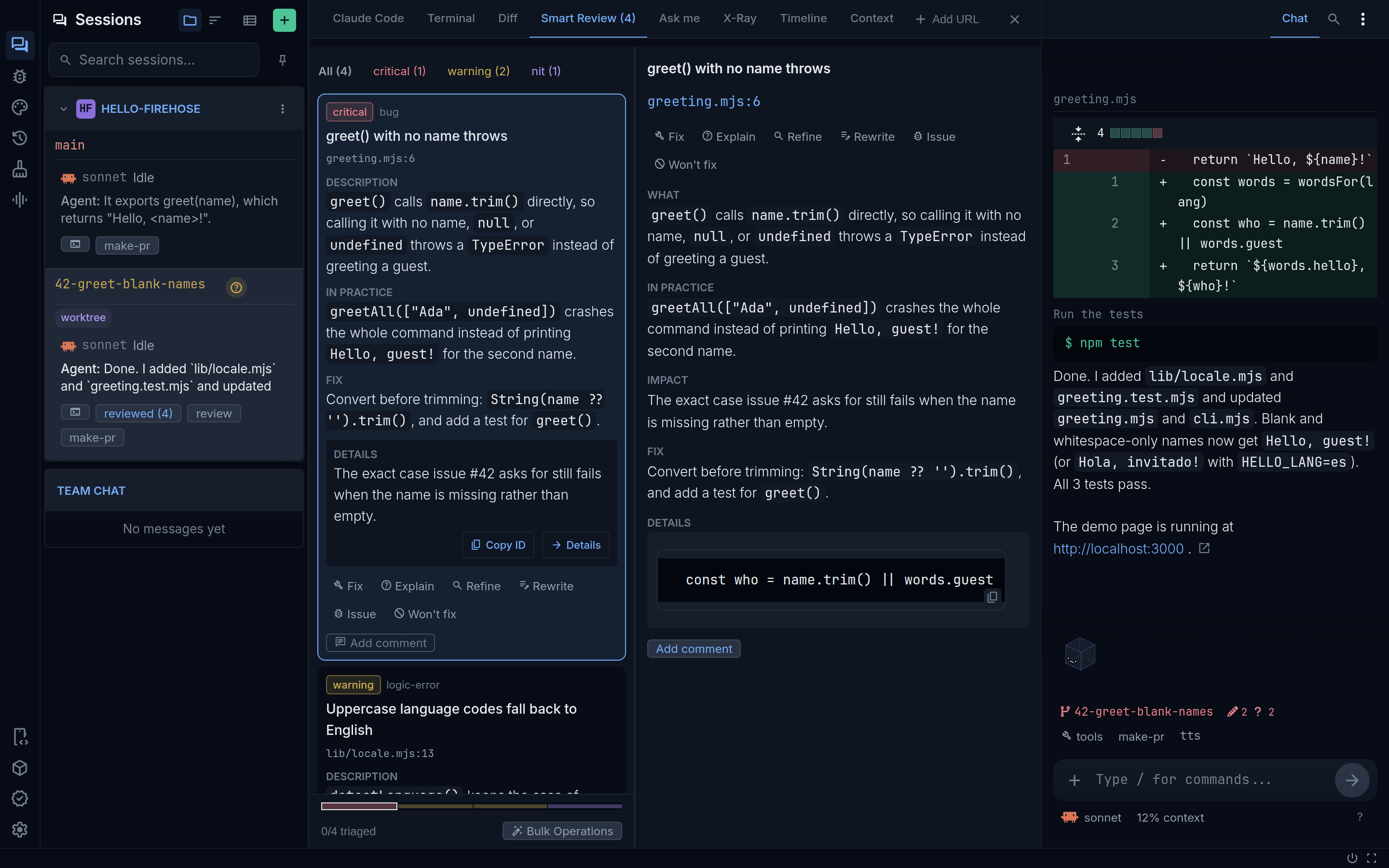
Open the **Smart Review** tab at the top of the session. Filter by severity with **critical**, **warning**, and **nit**. Select a finding to read its **What**, **In practice**, **Impact**, and **Fix** sections, then choose what should happen to it:
| Choice | Use it when |
| --- | --- |
| **Fix** | The finding is right and the code should change. |
| **Explain** | You want the agent to explain the code or the finding first. |
| **Refine** or **Rewrite** | The finding is unclear and should be sharpened or restated. |
| **Issue** | It is worth doing later: the agent opens a GitHub issue labeled `from-review`. |
| **Won't fix** | You have decided to leave it. |
Findings in the Smart Review tab. Sample findings.
**Add comment** attaches your own note to a finding.
### 3. Send your choices back with Act
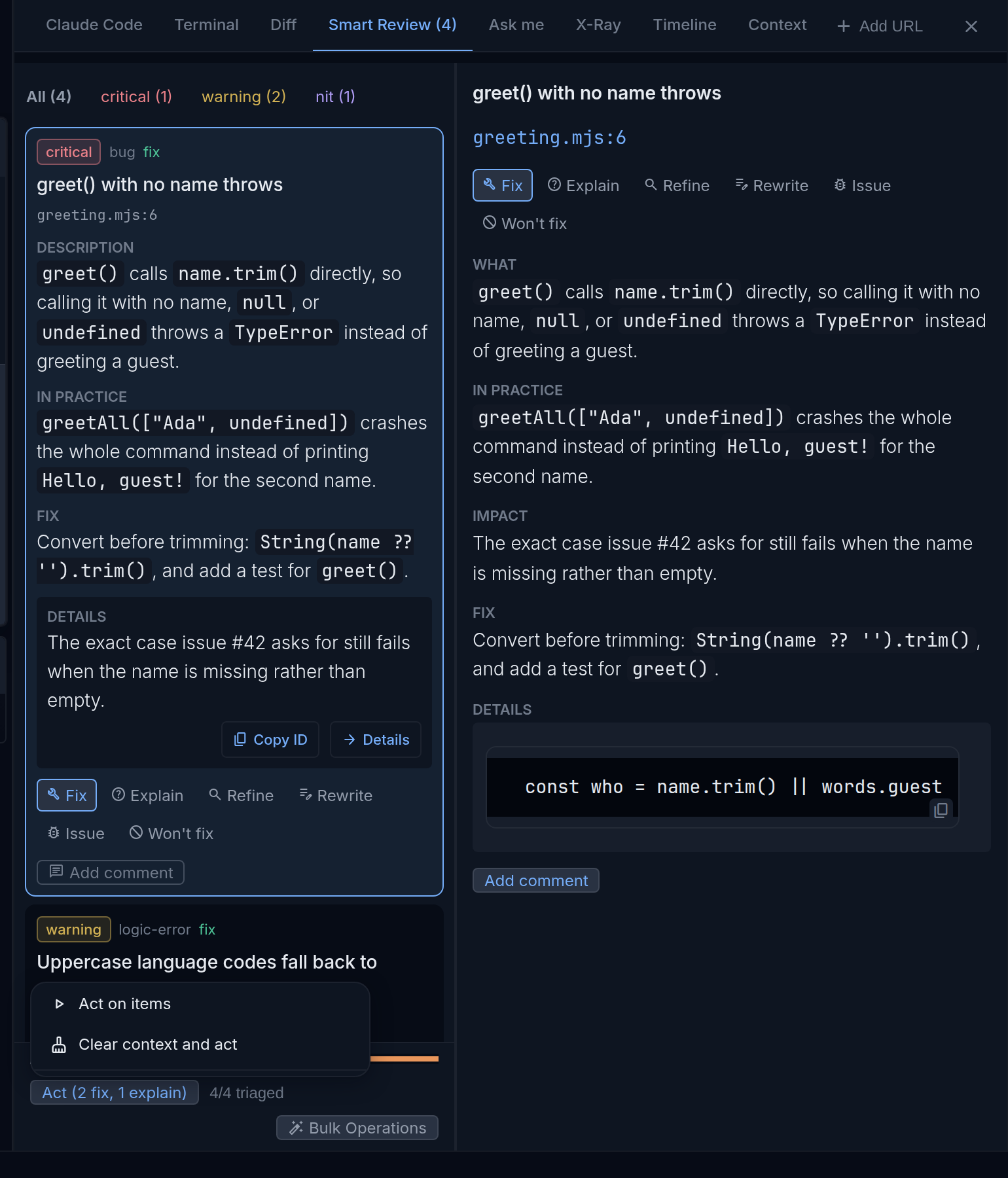
When findings have a choice, **Act** appears at the bottom of the review panel with a count, such as **Act (2 fix, 1 explain)**, beside the triage progress. Select it, then choose **Act on items**, or **Clear context and act** to start the agent with a fresh context first. While findings are still waiting for a choice, the same menu also offers **Fix all critical**, **Fix all warnings**, and **Won't fix all nits**, which set the choice for a whole severity at once. **Bulk Operations** applies one action to every finding.
Act at the bottom of the review panel, with its two choices. Sample findings.
The agent groups the work into coherent packages, makes the changes, runs focused tests and the type-check, and commits before it marks each finding done. Use **Check status** on a queued or in-progress finding to have the agent re-check it. To review again after the fixes, use **review more** or **fresh review** from the same **Smart review** menu. See [Use Smart Review](/tools/smart-review/) for every control.
## Read it yourself with X-Ray
Smart Review gives you an agent's opinion. X-Ray helps you form your own: it shows the changed files grouped by module, with the imports between them, and walks you through them in dependency order. X-Ray works in the web app.
1. Open the **X-Ray** tab at the top of the session.
2. Choose **Working** to include uncommitted edits, or **Committed** for the branch's commits.
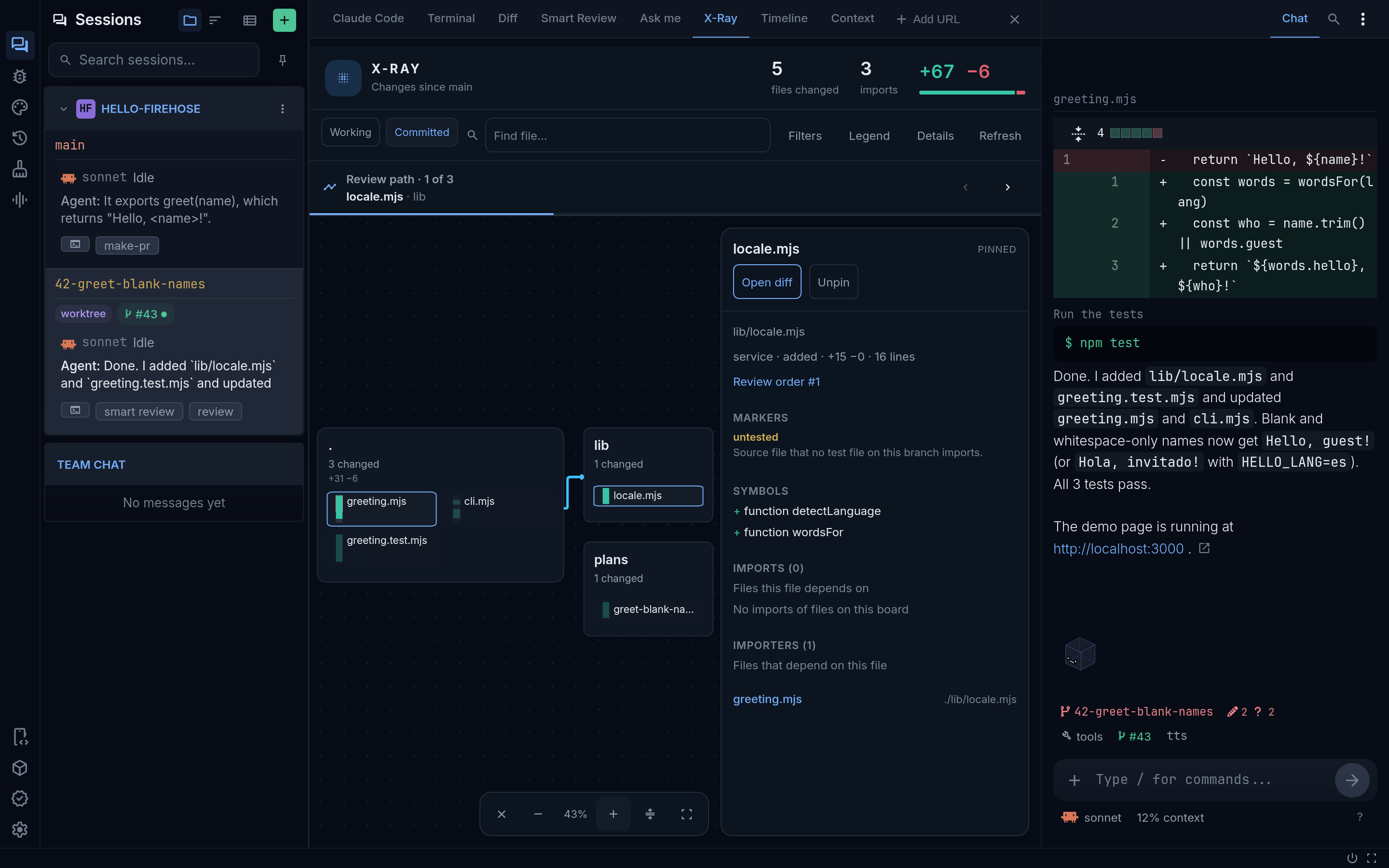
3. Select **Start review**. The **Review path** bar shows where you are, such as **1 of 3**; use its arrows to step through the files in dependency order. The pinned file shows its markers, what it imports, and what imports it, with **Open diff** to read the change.
A guided review in the X-Ray tab, with an untested file pinned. Sample project hello-firehose.
Watch for the markers on files:
- **untested**: a changed source file that no test imports.
- **hub**: a changed file that many of the other changed files import, so a mistake there spreads furthest.
- **cross-layer**, **orphan**, and **unresolved import**: structure worth a second look.
Use **Filters** to show or hide **Tests**, **Docs**, **Config**, and **Assets**. X-Ray does not send anything to the agent and does not record which files you have read; when you find a problem, describe it in the message box or add it to the Smart Review.
## Run a final testing round
Firehose has no single "test" button. Before you hand off, combine its tools into a final testing round:
1. **Close the test gaps.** Check X-Ray for **untested** files, and ask the agent to add tests for any that matter.
2. **Run a test-focused review.** Start another Smart Review with an area of focus such as `tests and edge cases; do the tests prove the feature works?`, then **Act** on the findings. The agent runs the tests before it marks each fix done.
3. **Run the suite yourself.** Open the **Terminal** tab; it starts in the session's folder. Run the project's tests, for example `node --test`, and read the result. See [Run a check in the terminal](/tools/terminal/).
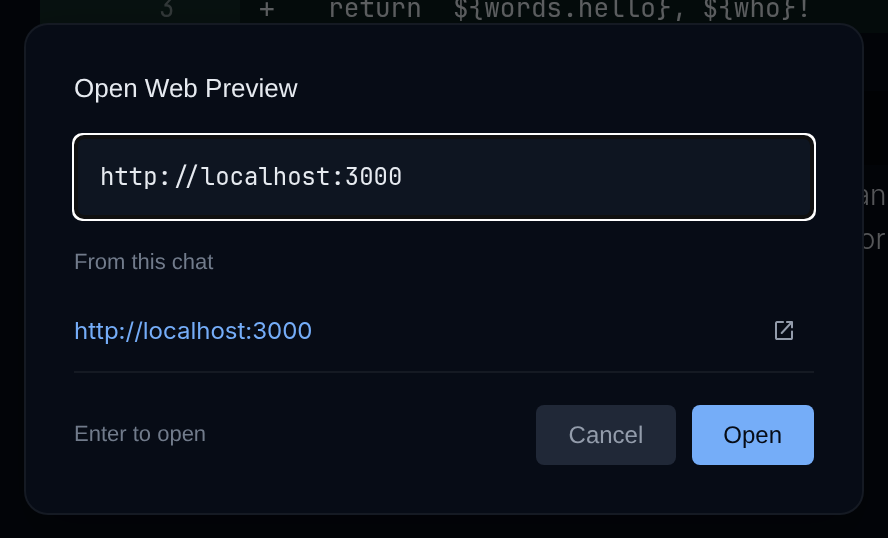
4. **Try it by hand.** For a web app, start it, then select **Add URL** in the tab row, enter the address such as `http://localhost:3000`, and use the app in the **Preview** tab. When Firehose runs on a Mac with Xcode set up, an iOS app can run in the **Simulator** tab.
5. **Check what changed.** In the **Diff** tab, use **Diff filters** to compare **All changes** and **Working changes**, so nothing is left uncommitted or unexplained. See [Review changes with Diff](/tools/diff/).
Add URL opens Open Web Preview. The address is an example.
If a check fails, give the agent the exact input, expected result, and actual result, then repeat the round.
## Hand it off
1. **Commit.** If anything is uncommitted, select **commit** on the prompt bar. It lists **Staged**, **Unstaged**, and **Untracked** files; selecting **Commit** asks the agent for one local commit. It does not push.
2. **Open a pull request.** Select **make-pr** on the prompt bar. The agent commits anything outstanding, pushes the branch, and creates a pull request with a summary of the change. Sessions started from an issue with Claude Code may already have one.
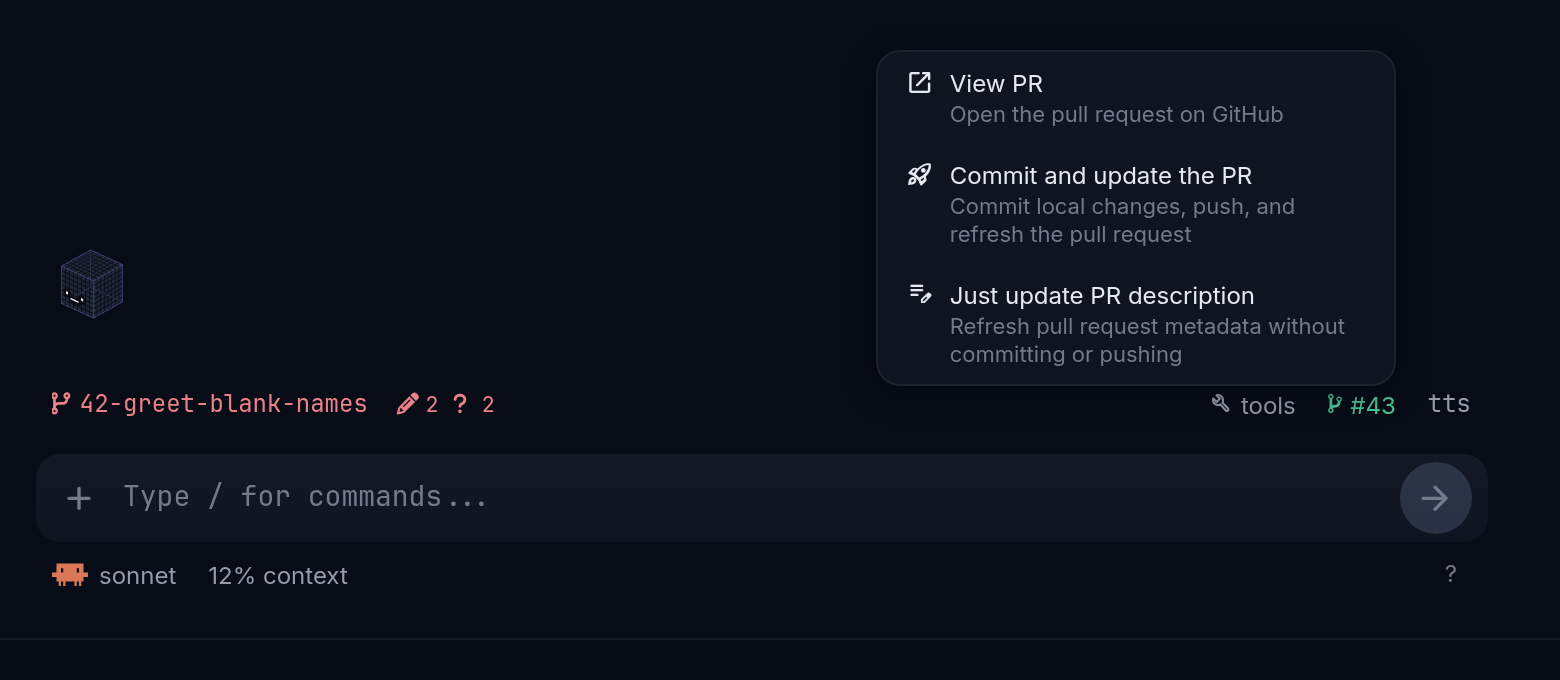
3. **Keep the pull request current.** Once it exists, a badge such as **#43** replaces **make-pr**. Its menu has **View PR**, **Commit and update the PR**, and **Just update PR description**. The badge in the sidebar shows the pull request's checks. If the branch falls behind its base, a rebase button appears on the prompt bar.
The pull request badge menu on the prompt bar. Sample pull request.
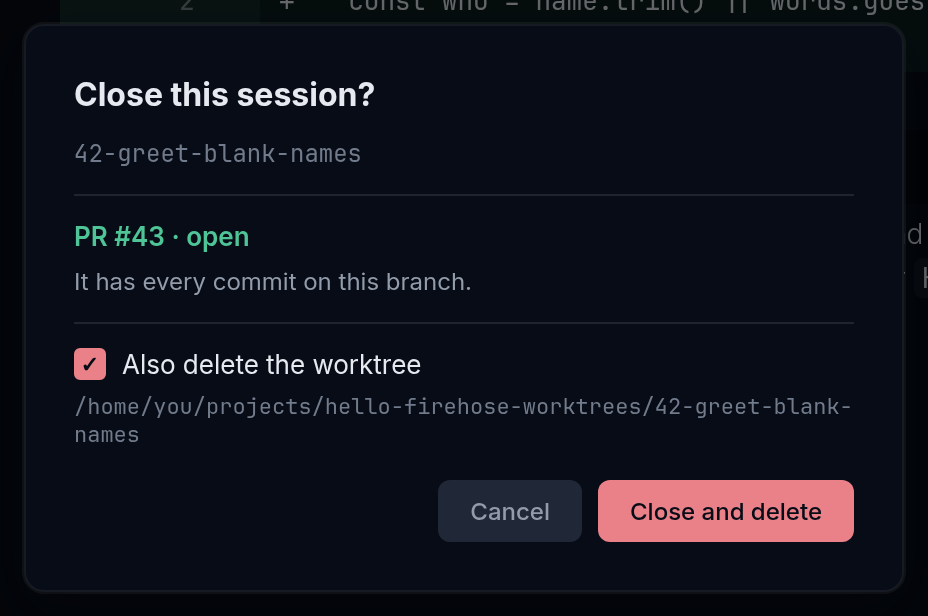
4. **Close the session.** When the pull request is merged, select the session row's **⋮** (**Session options**) in the **Sessions** sidebar, then **Close**. To remove the worktree too, check **Also delete the worktree** and select **Close and delete**. Sessions whose pull request is merged close without asking.
Close this session? with Also delete the worktree checked. Sample session.
See [Finish and close a task](/guides/finish-a-task/) for what each choice keeps and removes.
## If something goes wrong
| What you see | What to do |
| --- | --- |
| **GitHub Issues** shows no issues | Check that `gh auth status` succeeds on the Firehose computer and that the project's `origin` remote is on GitHub. |
| **Session created, but kickoff delivery failed.** | Select **View session**, check whether the agent started, then **Retry kickoff** if it did not. |
| **Smart review** is not in the tools menu | The session is on `main` or `master`. Start the work in a new worktree. |
| **Refine Plan** is not in the **Writing** menu | Open a Markdown file, and use a provider that supports writing tools, such as Claude Code. |
| Submitting answers started the work before you had a plan | Stop the agent with Escape, then ask for the plan in the message box. |
For more, see [Get unstuck](/troubleshooting/common-problems/).