# Find your way around Firehose
Learn where Firehose keeps its controls, so you can follow any guide on this site. Every guide names a control and where it is; this page shows how those places fit together.
This page describes Firehose 1.0.1.
## The layout on a computer
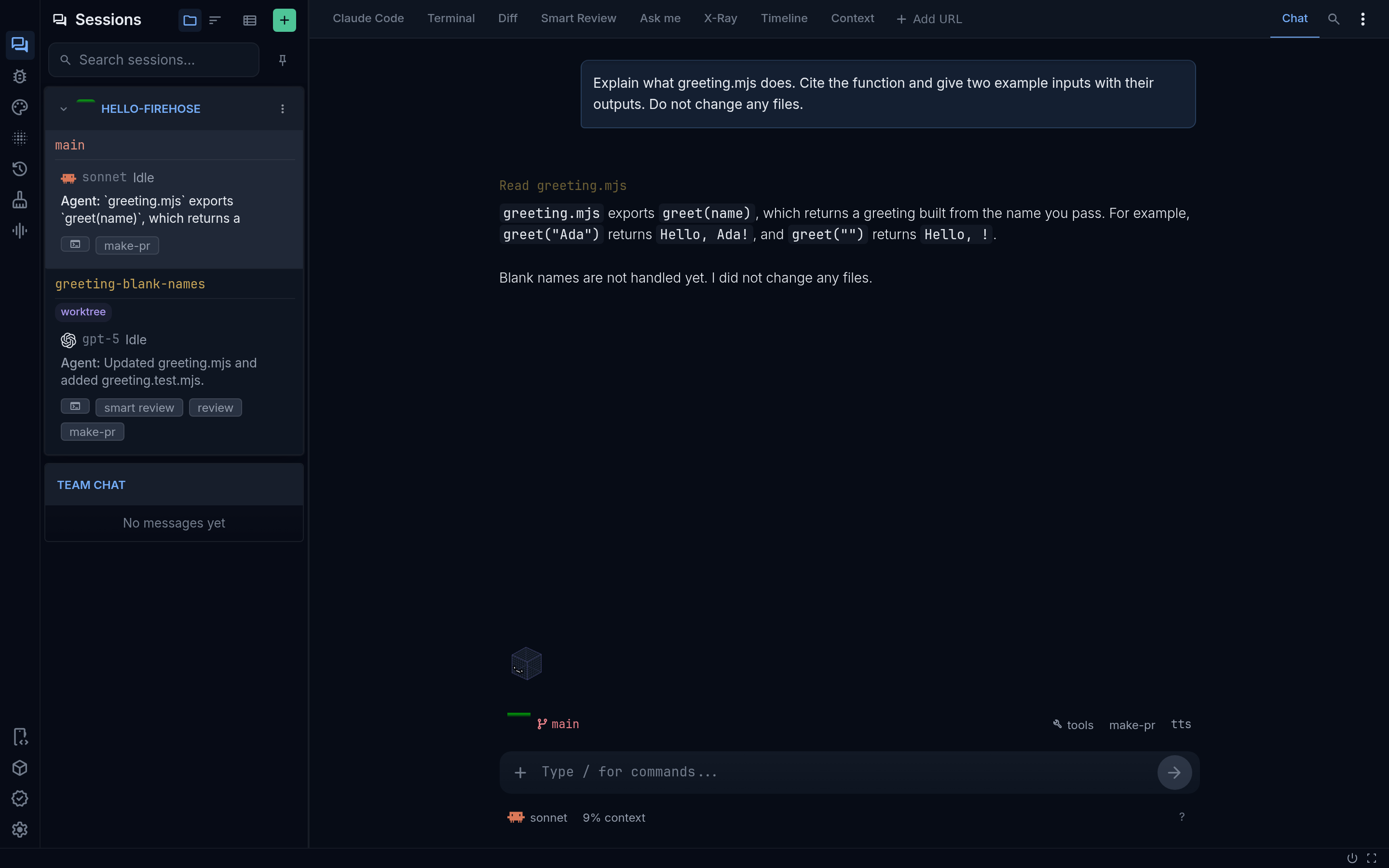
The Firehose window has four areas, from left to right and top to bottom:
| Area | Where it is | What you use it for |
| --- | --- | --- |
| **Icon rail** | The narrow strip of icons on the far left edge | Switch the sidebar between panels. The speech-bubble icon at the top shows **Sessions**. The gear icon at the bottom opens **Settings**. |
| **Sessions sidebar** | Beside the icon rail | See every session, grouped by project. The **+** button in its header, labeled **New session**, starts a session. |
| **Workspace tabs** | A row across the top of the selected session | Open **Terminal**, **Diff**, **Smart Review**, **Ask me**, and other tools. The **Chat** toggle sits at the right end of this row. |
| **Prompt bar and message box** | The bottom of the selected session | The prompt bar shows the session's folder and branch, with **commit** and **tools** on the right. Below it, the message box is where you type to the agent. |
A status bar runs along the very bottom of the window.
The Firehose window: icon rail, Sessions sidebar with the + button, workspace tabs, and the prompt bar and message box. Select the image to open it full size. Sample project and messages.
## Start a session
Select **New session**, the **+** button at the top right of the **Sessions** sidebar. If the sidebar is too narrow to show it, open the **⋮** **Menu** button in the sidebar header instead.
The **New agent session** dialog walks through three steps:
1. **Pick a project.** Choose a project, then select **Next: Choose a workspace**. To create a project, select **New git project** below the list.
2. **Choose a workspace.** Choose **Current checkout**, **New worktree**, or **Existing branch**. See [Choose a workspace](/guides/workspaces/).
3. **Choose an agent.** Choose a provider and model, check permissions, and select **Start session**.
## Open Settings
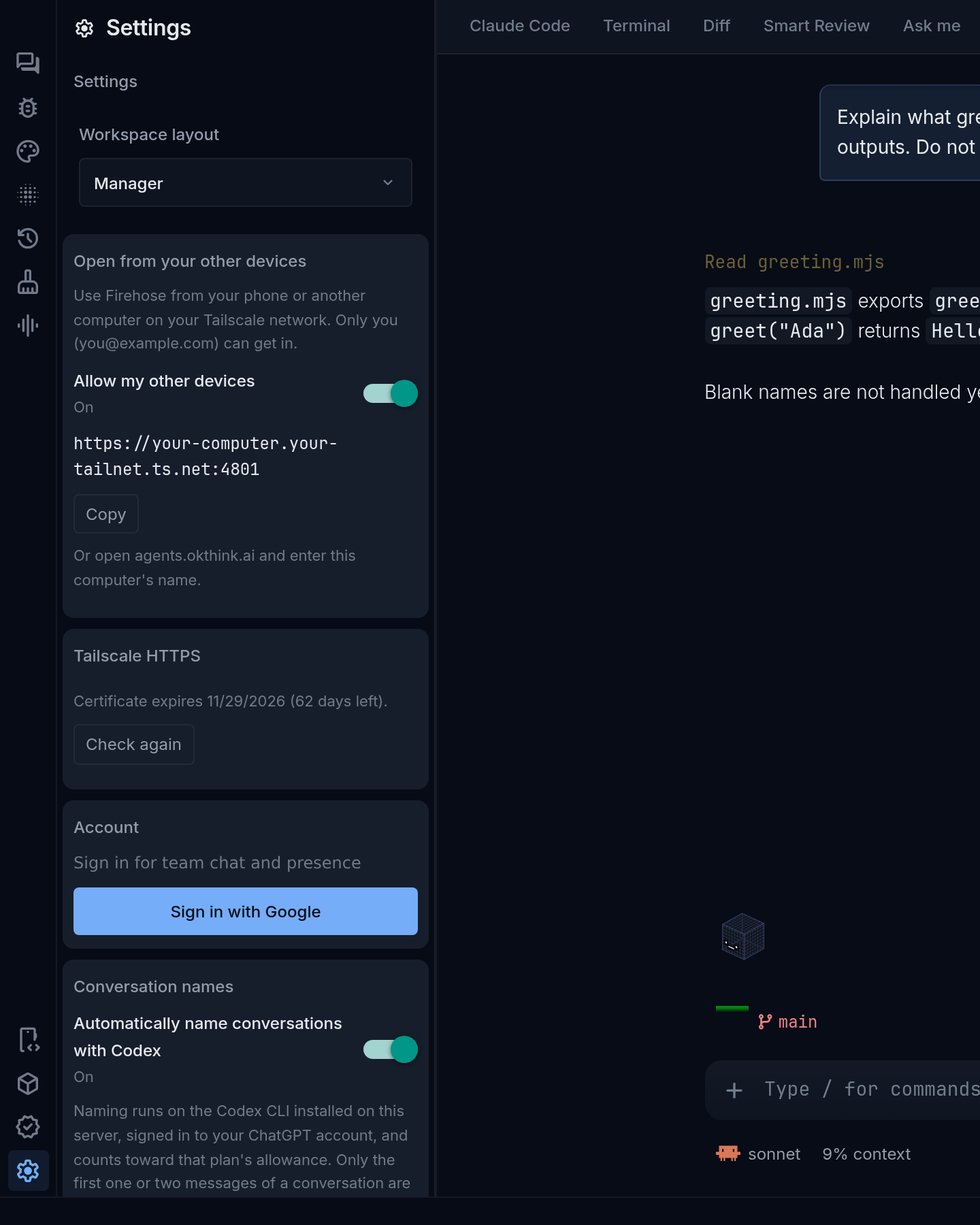
Select the gear icon labeled **Settings** at the bottom of the icon rail. Settings opens in the sidebar. See [Projects, agents, and settings](/reference/settings/) for what each section does.
Settings in the sidebar, opened from the gear at the bottom of the icon rail. Sample values.
## Work in a session
Select a session in the **Sessions** sidebar to open it.
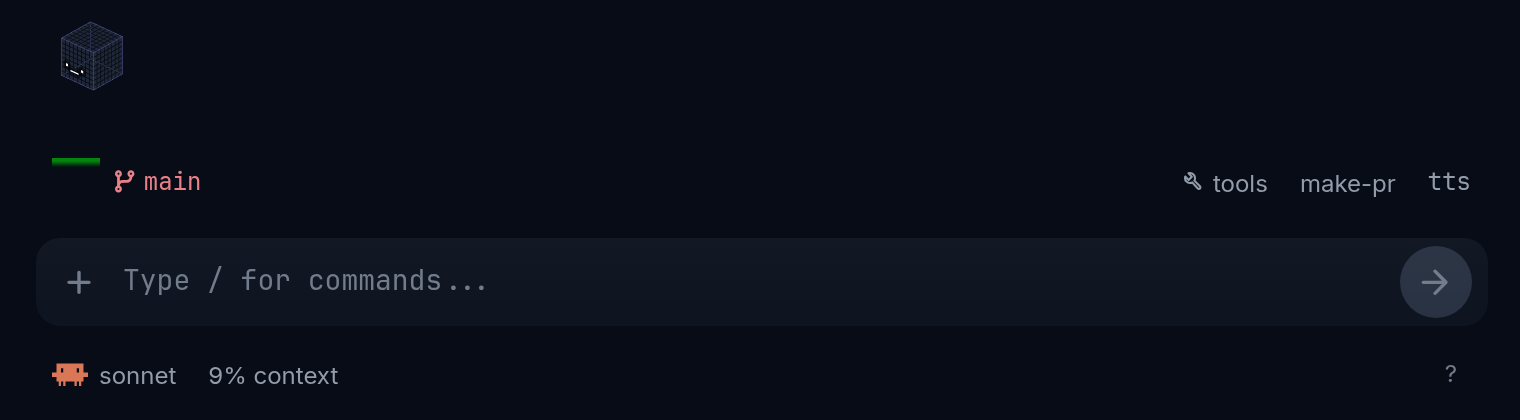
- **Talk to the agent.** Type in the message box at the bottom, which shows `Type / for commands...` when empty. Press Enter or select the round arrow button at its right to send.
- **Check where it runs.** The prompt bar above the message box shows the session's folder and branch. Select the branch to refresh Git status. For the full path, open **More actions** (the **⋮** at the right end of the workspace tabs), then **Session details**, and read **Directory**.
- **Use tools.** Select **tools** on the prompt bar for **Ask me questions** and **Smart review**. The **commit** button appears beside it when the branch has uncommitted changes.
- **Attach a file.** Select the **+** at the left of the message box's lower row.
- **Check context use.** The **NN% context** button below the message box shows how much of the agent's context window is used, with **Compact** and **Clear**.
- **Stop the agent.** While it works, press Escape in the message box, or select the red stop button, **Stop (interrupt)**, beside the activity indicator above the message box.
- **Close the session.** In the **Sessions** sidebar, select the session row's **⋮** (**Session options**), then **Close**.
The prompt bar, message box, and NN% context button. Sample session.
A session's status, such as **Idle** or **Stopping...**, appears on its row in the **Sessions** sidebar.
## The layout on a phone
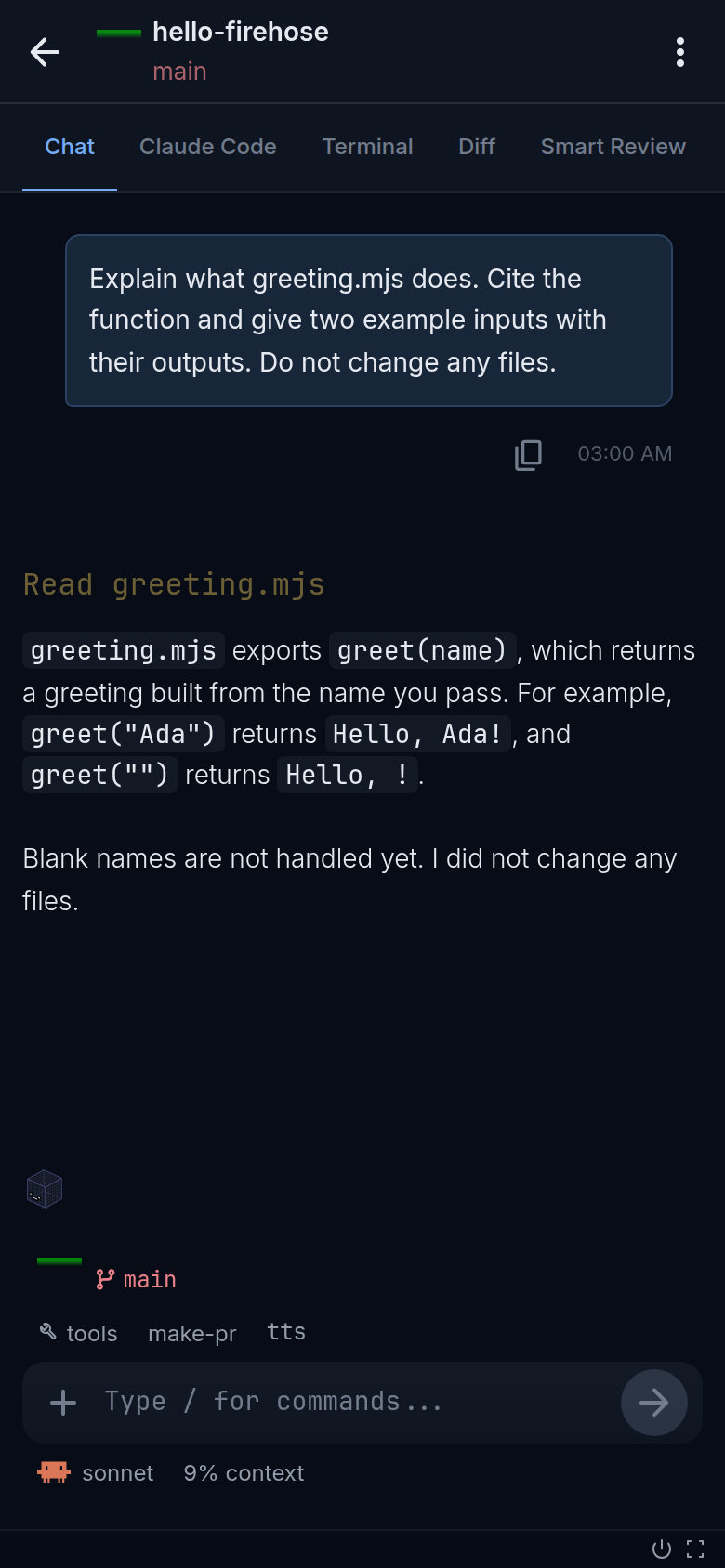
On a phone, Firehose shows one screen at a time:
- **The session list** is the first screen. The icon rail, including **Settings**, appears only here.
- **A session** fills the screen when you select it. The workspace tabs start with **Chat** and scroll sideways. Select the back arrow in the session header to return to the list.
- **The session header's ⋮ menu** has **Interrupt** and **Session details**.
A session on a phone: back arrow and ⋮ menu in the header, tabs starting with Chat. Sample project and messages.
See [Use Firehose on mobile web](/guides/mobile/) for a full walkthrough.